
Getting Started with Commander
Getting started with Luxor Commander for fleet management
Welcome to Luxor Commander. This section will help you understand the basics of how to set up and use Commander to monitor, manage, and automate your Bitcoin mining fleet.
What is Luxor Commander?
Luxor Commander is Luxor's cloud-based Miner Management Software (MMS) for Bitcoin mining operations. It provides a centralized interface to monitor miner health and performance, execute Bulk Actions across your fleet, put your fleet on auto-pilot by always using the most profitable settings via Intelligent Miner, automate responses to operational conditions via Automation Rules and visualize your physical site layout with Sitemap.
Commander is accessible from within the Luxor web application and supports miners running LuxOS, stock Bitmain, and MicroBT firmware. The agent has protocol handlers for both Bitmain (Antminer), MicroBT (Whatsminer) and Canaan (Avalon) - LuxOS is not required, though some advanced features (such as Intelligent Miner profile optimization and ATM configuration) are LuxOS-specific.
Commander vs. LuxOS Commander (Desktop App)
This is the documentation for Commander, the cloud-based fleet management platform. For the LuxOS Commander desktop app used to install LuxOS firmware, see the LuxOS Commander documentation.
Prerequisites
Before getting started with Commander, ensure the following:
- You have a Luxor account and an active Workspace.
- You have one or more Sites configured under your Workspace.
- You have a computer (Linux or Windows) or virtual machine to install the Commander Agent on to.
- Your mining machines are reachable on a local network that can be scanned by a Commander Agent.
Quick Start
Step 1: Access Commander
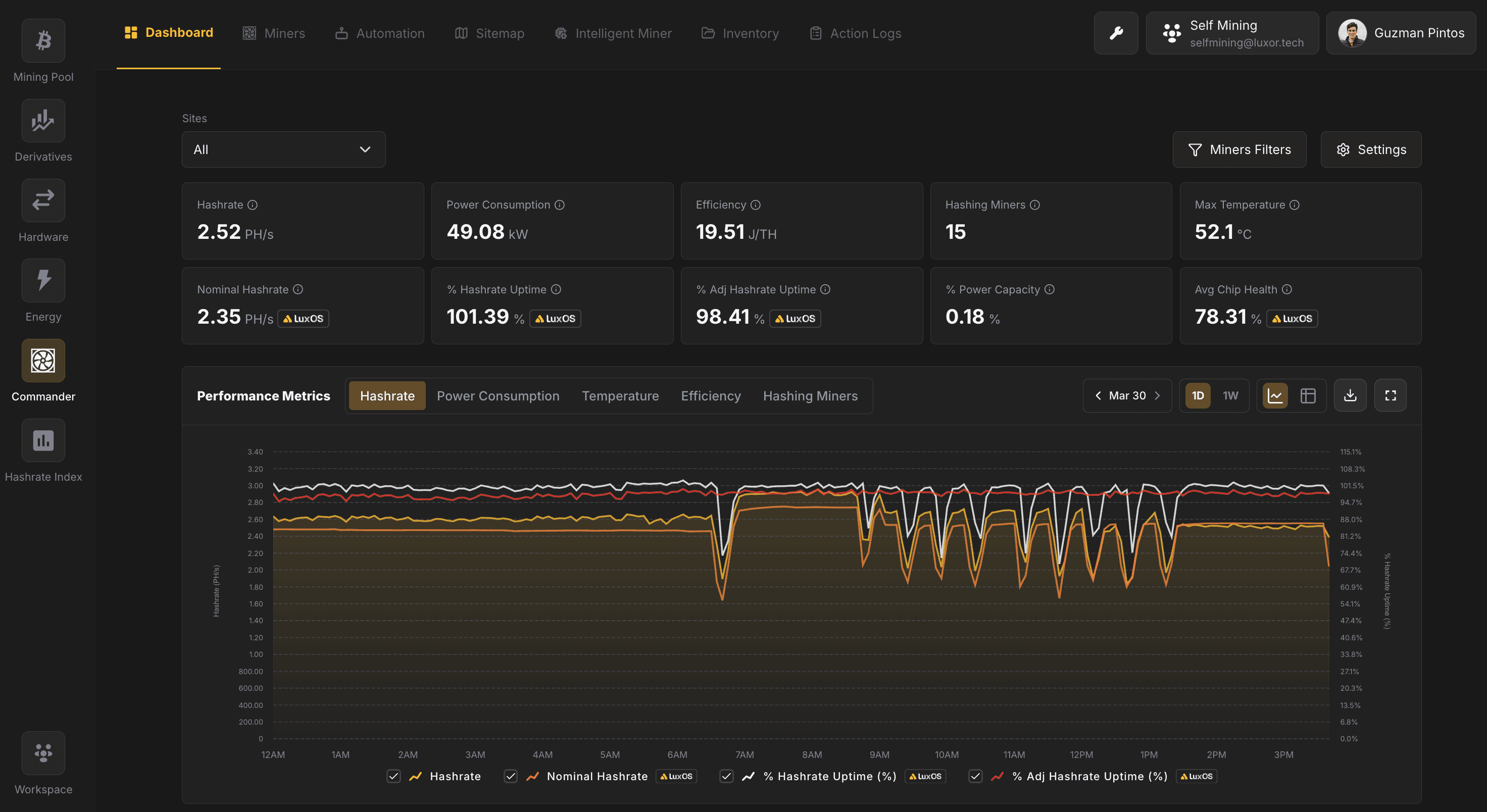
Navigate to the Commander section in the left sidebar of the Luxor app. Commander is available under the same Workspace context as other Luxor products - the data and resources visible in Commander are scoped to your currently selected Workspace.
Step 2: Set up an Agent
A Commander Agent is a lightweight service that runs at your mining site and serves as the bridge between your local miner network and the Commander cloud platform. The Agent scans your local network for miners, collects real-time telemetry data (hashrate, temperature, power consumption, health status, errors), relays that data to Commander for visualization and analysis, and executes commands sent from Commander (bulk actions, trigger responses) on your local miners.
You will need a dedicated server or mini PC at your mining site with network access to your miners. For full server and network requirements, see the Agents page.
Create an Agent in Commander
- If this is your first time creating an Agent, you will see a message to begin the Setup process. Select Start Now to begin creating your first agent.

If you have already created an agent, and would like to create another, you can do so from the Settings menu, by selecting the + Agent button.
- Choose a Plan:
- Commander Lite: A free plan that includes viewing your miners dashboard, as well as the ability to install and update LuxOS.
- Commander Pro: A paid plan that includes everything Commander offers - Advanced bulk actions, Triggers, Sitemap, Inventory, Intelligent Miner, and more.
- Select a Site:
- Site: Select the Site this Agent will be associated with. You can select an existing site, or create a new one.
- Configure Network Settings:
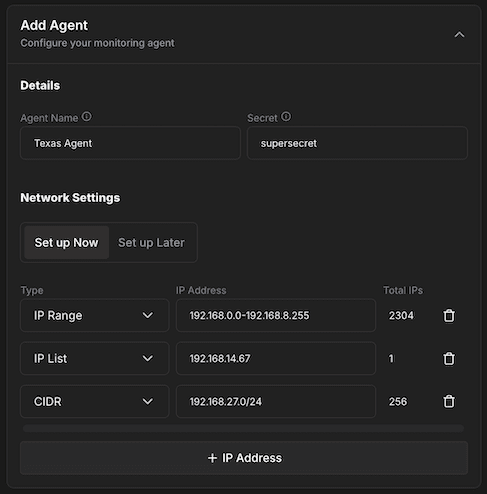
- Agent Name: Provide a descriptive name (e.g.,
agent-001). - Secret: Enter a secret key for authentication between the Agent and Commander.
- Set up Now or Set up Later: Choose whether to configure the Agent's network scan range immediately or defer it.
- Type: Select the network type - typically IP Range.
- IP Address: Enter the IP address range that the Agent should scan. Supported formats include:
- Single IP:
10.206.0.1 - IP Range:
10.206.0.1-100 - CIDR:
10.206.0.0/24
- Single IP:
- Total IPs: Displays the total number of IPs in the configured range.
- You can add multiple IP address ranges by clicking + IP Address.
- Agent Name: Provide a descriptive name (e.g.,
- Click Create New Agent. Once created, you will be provided with options to install the agent.
Install and run the Agent software
After creating the Agent in the Commander UI, install and run the Agent software on a machine at your mining site. You can use the pre-configured commands to install in one go. The Agent connects to Commander using the credentials (Agent ID, Secret) you configured during creation.
Once the Agent is running and connected, it will begin scanning your network and reporting miner data to Commander. The Agent's status will appear as Enabled in the Agents table on the Dashboard.
Step 3: View Your Fleet
After the Agent discovers your miners, navigate to the Dashboard tab for an overview of fleet-wide performance metrics. Navigate to the Miners tab to see a table of all detected machines. Use the Sitemap tab to set up a visual representation of your physical infrastructure.
Navigation
Commander is organized into the following sections, accessible from the top navigation bar:

| Section | Purpose |
|---|---|
| Dashboard | Fleet-wide KPIs, performance charts, health and error status, agents, and recent actions |
| Miners | Detailed table of all miners with filtering, sorting, and bulk action capabilities |
| Automation | Automated rules (Triggers) that execute actions when specified conditions are met |
| Sitemap | Visual map of your physical infrastructure organized by groups and racks |
| Intelligent Miner | Intelligent fleet optimization that automatically adjusts mining profiles to maximize profit based on real-time market conditions |
| Inventory | Asset lifecycle management for tracking miners across procurement, deployment, maintenance, and decommission |
| Action Logs | A history of all actions taken upon miners. Select a specific action to view detailed information |
Common Workflows
Commander's features are designed to work together. Here are a few scenarios that show how different parts of the platform connect in day-to-day operations.
Responding to a Heat Event
A Trigger Rule detects miners exceeding your temperature threshold and automatically reboots them and sends an email alert. You check the Actions Log to see which miners were affected, then open the Sitemap heatmap to determine whether it's a facility-wide airflow issue or isolated to specific racks. If it's localized, you inspect the affected machines on the Miners page to review their error history and decide on next steps.
Daily Power Curtailment
A Schedule Rule reduces miner power targets every evening during peak electricity pricing. For sites with energy contracts configured, Intelligent Miner goes further by optimizing individual miner profiles to maximize revenue within the reduced power envelope - keeping efficient machines hashing while idling those that would mine at a loss.
Tracking Hardware Through a Site Migration
Inventory tracks each physical miner by a stable Asset ID that persists across moves, board swaps, and IP changes. When miners are relocated to a new site, you update their lifecycle status to reflect the transition. Once they come back online and an Agent scans them at the new location, the Inventory record links to the new miner ID automatically - no spreadsheet reconciliation required.
Fleet-Wide Firmware Rollout
From the Miners page, filter by model and current firmware version to isolate the machines you want to update. Select them and use Bulk Actions to queue a LuxOS install or update. Monitor the rollout in the Actions Log, where each miner's result (success, failure, incompatible) is recorded individually. If any fail, drill into the Action Details page to see the specific error and retry on just the failed subset.
Permissions
Commander uses role-based access control managed at the Workspace level. Navigate to Workspace → Members, edit an existing member, or select the "+Member" button to invite someone new, and use the Product column to assign roles.
| Role | Capabilities |
|---|---|
| Viewer | View-only: see the dashboard, miners, actions log, and sitemaps, but cannot execute bulk actions or modify settings |
| Admin | Full access: view all data, execute bulk actions, manage triggers, configure settings and agents |
| No Access | No access allowed, the user will not have permissions to view or edit |
| Custom | Choose Viewer/Admin/No Access permissions based on each Site |
Sites Filter
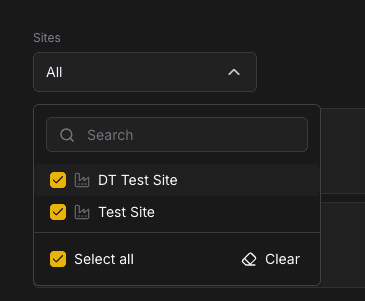
Throughout Commander, a Sites dropdown allows you to filter data by a specific Site or view data across all Sites. This is useful for operators managing multiple physical locations within a single Workspace.