

Miners
Inspect individual miner performance, search, filter, and manage your fleet
Overview
The Miners page is where you go when you need to work with specific machines rather than fleet-level aggregates. Whether you're tracking down a handful of miners that dropped offline, comparing performance across models, or selecting a batch for a firmware update, the Miners table gives you searchable, filterable, sortable access to every device your Agents have discovered. From any row, you can drill into a Miner Details page for full performance history, event logs, and per-miner action records.
Miners View
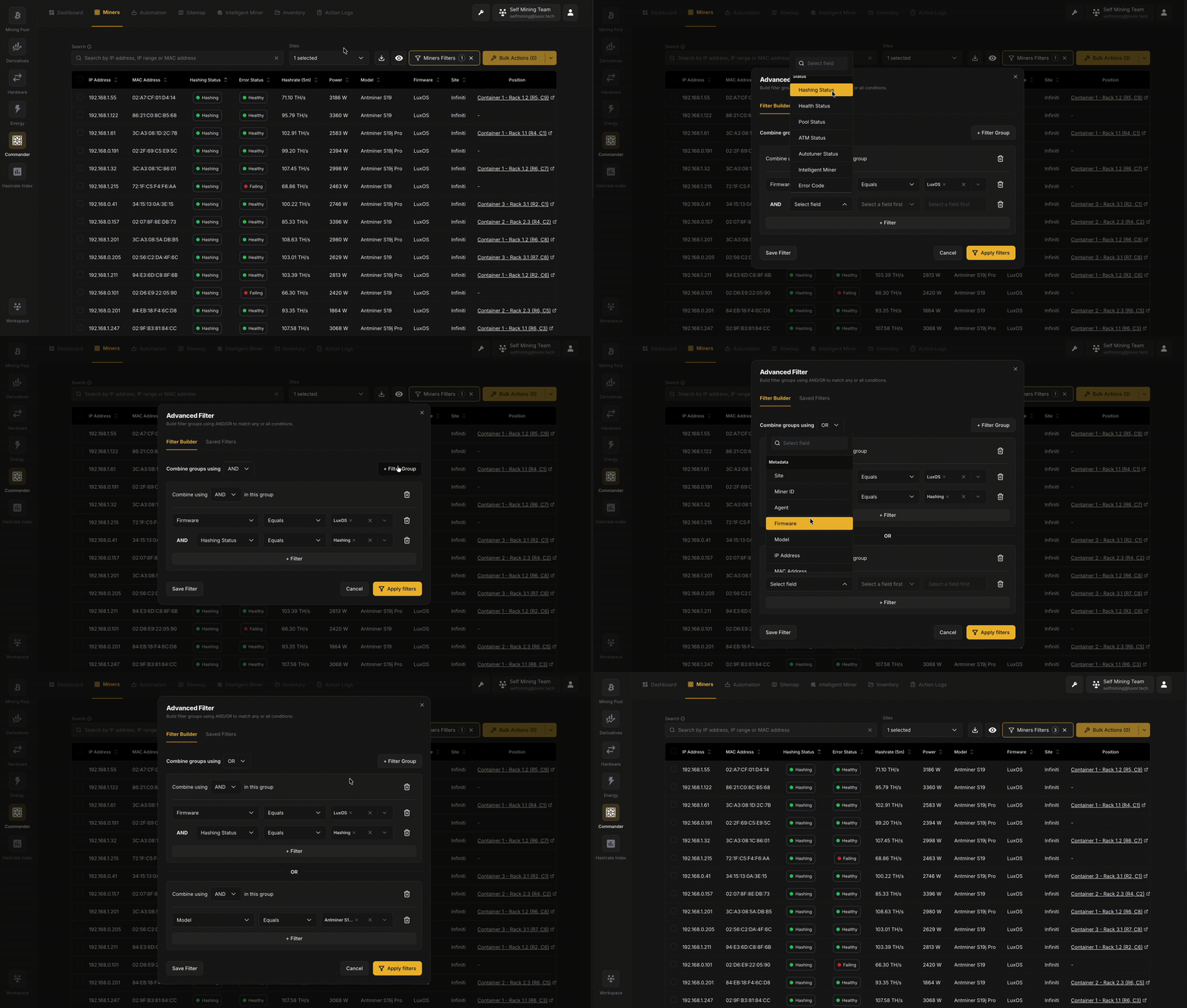
The Miners page displays one row per miner with different columns for the miner's associated metadata and activity metrics. The table is highly customizable and supports advanced filtering, sorting, and export capabilities.
Miners Table
The table displays one row per miner with columns for metadata and activity metrics. Key features include:
-
Search: The search bar at the top of the page allows you to locate miners by IP address, IP range, CIDR, or MAC address. This enables quick access to specific devices without scrolling through large inventories.
-
Sorting: Each column header is sortable. Click a column header to sort the table by that attribute in ascending or descending order. Multi-column sorting allows you to create complex views (e.g., sort by Error Status, then by Hashrate).
-
Filtering: The Miners Filters button provides quick filters by any table column. The filter builder supports multiple conditions combined via AND/OR operators, allowing you to create sophisticated queries. Frequently used filter configurations can be saved for quick reuse via the Save Filter option in the Advanced Filter dialog.
-
CSV Export: The download button in the top toolbar allows you to export the current miners table - including any active filters - as a CSV file for offline analysis, reporting, or integration with external tools.
-
Column Customization: Use the columns selector to show or hide specific data columns, tailoring the view to your operational needs.
Unresolved Errors Column
The Miners table also includes an Unresolved Errors column, which displays the count of unresolved error events for each miner. This makes it easy to prioritize machines that need attention and quickly identify which devices are experiencing issues.
Miner Details Page
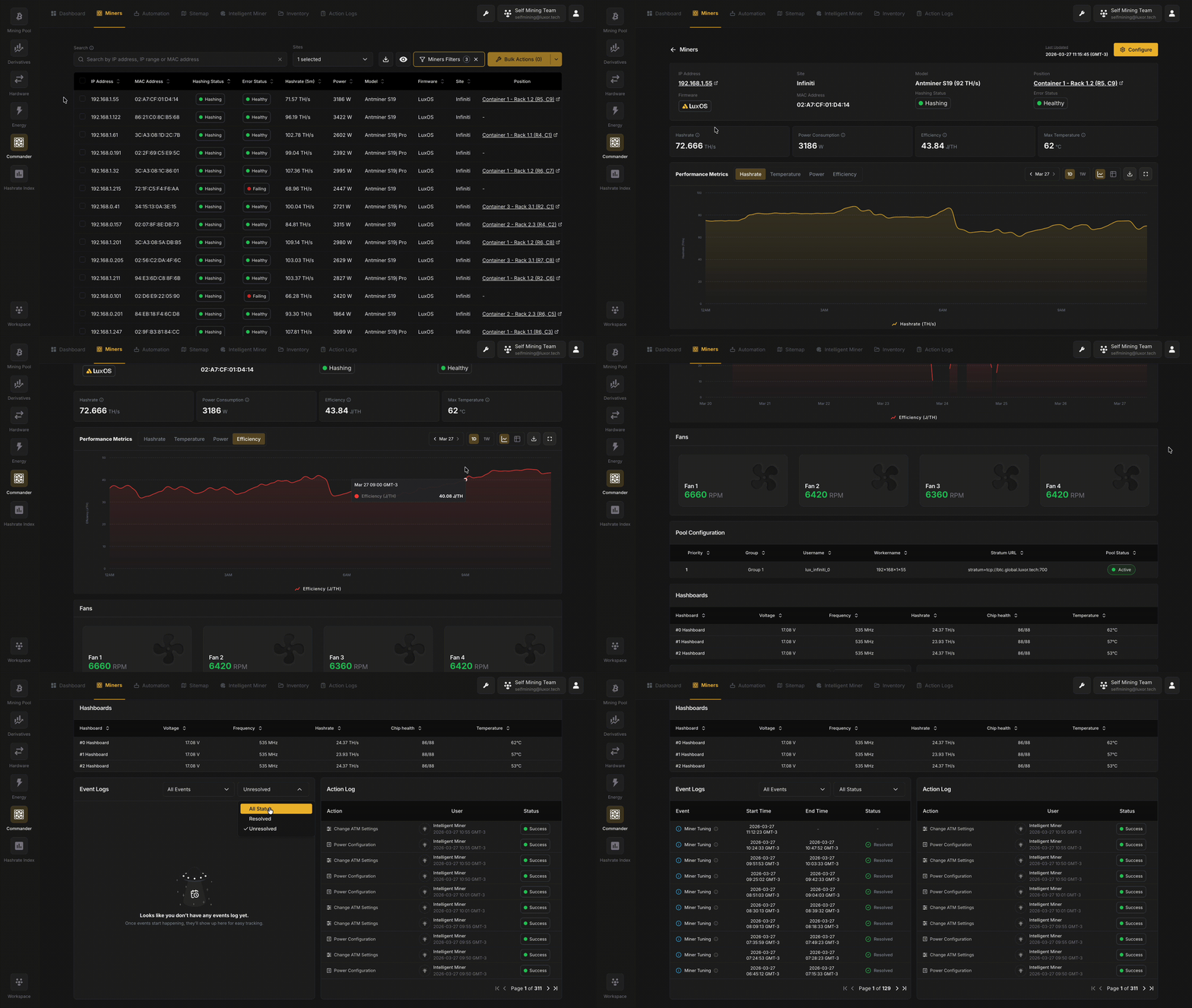
Clicking on a row in the Miners table opens the Miner Details page, which provides an in-depth view of an individual machine. This page consolidates all relevant information about a specific miner in one place.
Miner Identity
The detail page header displays essential identifying information about the miner:
- IP Address - Clickable link to the local web UI of the miner
- Site Assignment - The Site this miner belongs to
- Model - Miner hardware model
- Rated Hashrate - Nameplate hashrate specification
- Sitemap Position - Position in the Sitemap grid (e.g.,
B1 – A1 (R1,C1)) - Firmware Version - Currently running firmware version
- MAC Address - Hardware identifier
- Hashing Status - Current operational state (Hashing, Idle, or Offline)
- Error Status - Current health classification (Healthy, Failing, or N/A)
Performance Metrics
KPI cards display the miner's current metrics:
- Hashrate - Current mining output
- Power Consumption - Current power draw
- Efficiency - Current energy efficiency (J/TH)
- Max Temperature - Highest temperature reported
Below these, a time-series chart shows historical performance data with tabs for:
- Hashrate - Historical mining output
- Temperature - Temperature trends over time
- Power - Power consumption history
- Efficiency - Efficiency trends
The chart controls are the same as the Dashboard but scoped to the individual miner, allowing you to zoom, pan, and inspect specific time periods.
Events Log
The Events Log displays a list of events for this specific miner. By default, the events log filters to Unresolved events of type Error, so you can quickly see any active issues.
You can adjust the filter to:
- View all events (not just errors)
- Filter by event type (Error, Warning, Info)
- Filter by resolution status (Unresolved only, or all)
Events are discrete data points tracked for the miners. LuxOS provides the most comprehensive set of events across three different categories (
Info,Warning, andError), which you can review in the LuxOS Events & Troubleshooting guide. For other firmware OS versions, we provide a limited set ofErrortype events.
Actions Log
The Actions Log displays a list of remote commands executed for this specific miner. This provides an audit trail of all operational actions taken on the device, including:
- Command type and parameters
- Execution timestamp
- Success/failure status
- Results and error messages (if applicable)
Clicking on an action redirects you to the Action Details page, where you can find more details for that remote command and its outcome across all targeted miners.
Bulk Actions Workflow
If you need to perform an action on multiple miners, the Miners table allows you to select multiple rows and trigger bulk operations. For a complete guide on bulk actions, including batch parameters, firmware installs, and audit trails, see the Bulk Actions & Actions Log page.
Navigation Tips
- Use the Miners table to get a fleet-wide view, then drill into individual miners via the Details page
- Leverage filters and saved filter configurations to quickly identify cohorts that need attention
- Export data regularly for external reporting and compliance requirements
- Cross-reference the Unresolved Errors column with the Miner Details Events Log to understand error context