

Workspaces
Understanding and organizing your mining operations with Luxor Workspaces
Introduction to Workspaces
A Workspace in Luxor is a dedicated environment that defines a user's scope of access and operations across all Luxor products. It acts as a contextual container that determines what data, settings, and resources are available at any given time.
When a user selects a Workspace, they only see and manage the resources associated with that specific Workspace, including:
- Subaccounts: Financial accounts where your mining rewards are credited.
- Sites: Logical representation of your physical facilities.
- API Keys: Only API keys generated within the selected Workspace are accessible.
- Referral Codes: Referral codes specific to the Workspace are displayed.
- Watcher Links: Users can only view and manage watcher links related to the selected Workspace.
- Other product specific resources: Like Derivatives contracts and orders placed, Energy contracts and bills, etc.
Key features of Workspaces include:
- A role-based permissions system.
- Activity Logs to track all relevant actions.
- Two-party Approvals system for critical actions.
- Sites management, allowing organization of physically separated machines and locations.
Creating and Managing Workspaces
Creating a Workspace
By default you are assigned a new Workspace after signup, but you can belong to multiple Workspaces. You can create a new Workspace by following these steps:
- Navigate to the Workspace dropdown located at the top right of the Luxor app.
- Click on
Create a New Workspace. - Provide a name for your new Workspace and click on
Create Workspace.
Switching Workspaces
You can switch the active Workspace by selecting one from the Workspace dropdown located at the top right of the Luxor app. This will change the content and data you have access to.
Workspace settings
You can access the Workspace settings by visiting the Workspaces page and clicking on the Workspace settings button (⚙️ icon). Please make sure the right Workspace is selected in the Workspaces dropdown selector. Once in the Workspace settings page you can:
- Rename a Workspace: Specify a new name and click
Save - Delete a Workspace: Click on
Delete, and accept the follow-up confirmation modal - Enable/Disable Approvals: This will enable the Approvals flow. For disabling it, you will need an approval from an authorized Workspace member.
- Enable/Disable Workspace Visiblity: Hides the Workspace section for members which are not Owners or Workspace Admins.
- Enable/Disable 2FA requirement: This will enforce 2FA for all your Workspace members, otherwise they won't be able to use Luxor app with this Workspace.

User Roles and Permissions
Roles allow users to control access across the Luxor app. A user can be assigned different roles across different access levels.
You can consult which users have which permissions, as well as extend new ones or invite other users to the Workspace, from within the Members tab, inside the Workspaces section.
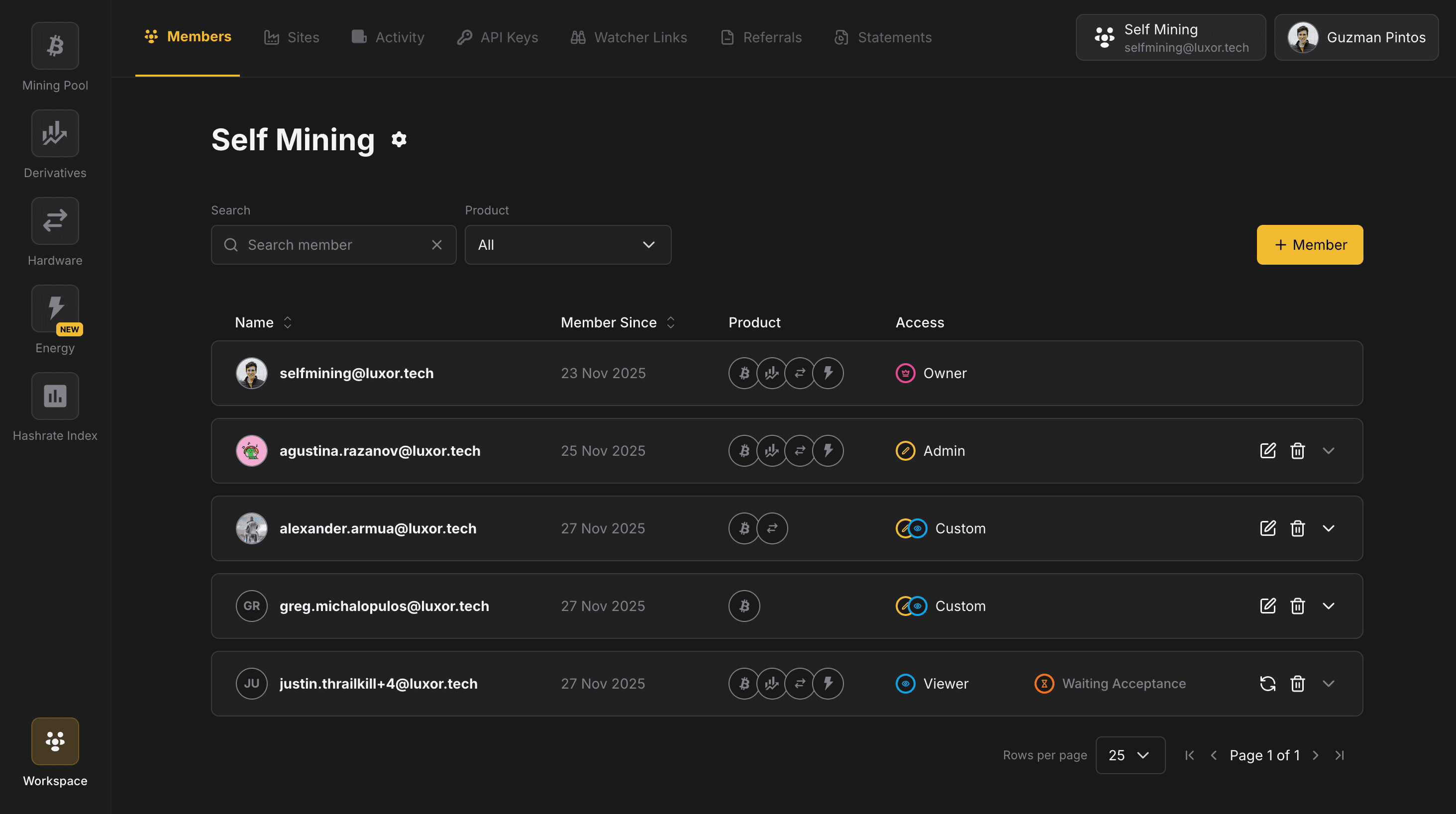
At a high level, the following roles are supported:
Admin: Can perform mutations.Viewer: Read-only access.
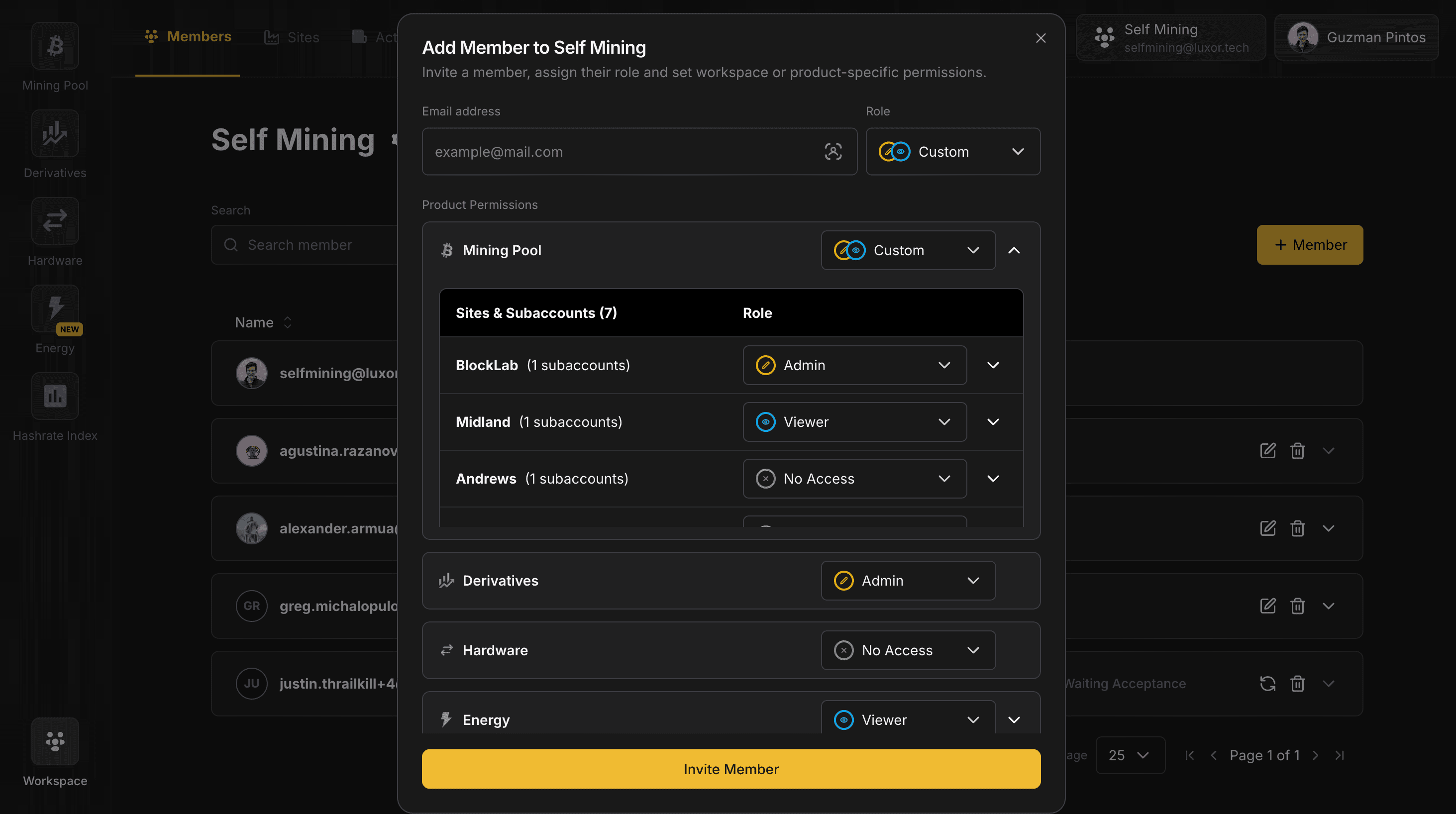
However, the true power of the system lies in the granularity and flexibility of the access levels for which these roles can be granted.
For instance, any user can be invited to the Workspace with Admin / Viewer role for:
- The Entire Workspace.
- One or more products: Mining Pool, Derivatives, Energy, Hardware.
- Within a Product, one or more Sites, or some specific subaccounts under these.
Please find below a list of relevant actions that can be performed, together with the permissions required to performed these:
| Domain | Action name | Required permissions | Approvals |
|---|---|---|---|
| Workspaces | Change Workspace name | Owner | - |
| Workspaces | Delete Workspace | Owner | - |
| Workspaces | Invite member | Any Admin (1) | ✅ |
| Workspaces | Edit member accesses | Any Admin (1) | ✅ |
| Workspaces | See Workpace Members, Activity Log and Sites | Any Workspace member (2) | - |
| Workspaces | Create Site | Workspace Admin | - |
| Workspaces | Edit/Delete Site | Workspace Admin | ✅ |
| Workspaces | Enable Approvals Flow | Workspace Admin | - |
| Workspaces | Disable Approvals Flow | Workspace Admin | ✅ |
| Workspaces | Enable/Disable 2FA Requirements | Workspace Admin | ✅ |
| Workspaces | Enable/Disable Workspace Visibility | Workspace Admin | ✅ |
| Workspaces | Edit Company Info | Workspace Admin | - |
| Workspaces | Download Monthly Statements | Workspace Admin | - |
| Workspaces | Create/Delete API Key | Workspace Admin | - |
| Workspaces | Create/Delete Referral Code | Workspace Admin | - |
| Workspaces | Create/Edit/Delete Watcher Link | Workspace Admin | - |
| Workspaces | Leave Workspace | Any Workspace member | - |
| Mining Pool | See Mining Performance, Subaccounts and Payment Settings | Subaccount Viewer or above | - |
| Mining Pool | Create subaccount | Subaccount Admin or above | - |
| Mining Pool | Delete subaccount | Subaccount Admin or above | ✅ |
| Mining Pool | Edit Site linked to a subaccount | Subaccount Admin or above | ✅ |
| Mining Pool | Change payment settings of a subaccount | Subaccount Admin or above | ✅ |
| Derivatives | See Contracts, Position Overview and Balances | Derivatives Viewer or above | - |
| Derivatives | Place Derivatives orders | Derivatives Admin or above | - |
| Energy | See Contracts, Operations and Earnings | Energy Viewer or above | - |
| Energy | Create/Edit Energy Contracts | Energy Admin or above | - |
| Hardware | See Hardware Catalog | Hardware Viewer or above | - |
| Hardware | Request Hardware Quote | Hardware Viewer or above | - |
- (1) Any Admin can invite other members to the Workspace, or edit permissions for existing members, but he can do with respect to the permissions for which he has an
Adminrole - (2) What the user can see in these sections is limited by the permissions he has been granted (e.g. a user without Mining Pool permissions wont find Pool mutations in the Activity Log)
Activity Log
Tracked Actions
The Workspace Activity log tracks a comprehensive set of actions that take place within the Workspace. Please refer to the table in the User Roles and Permissions section for actions currently tracked in the Activity log.
Viewing Activity Logs
- Access
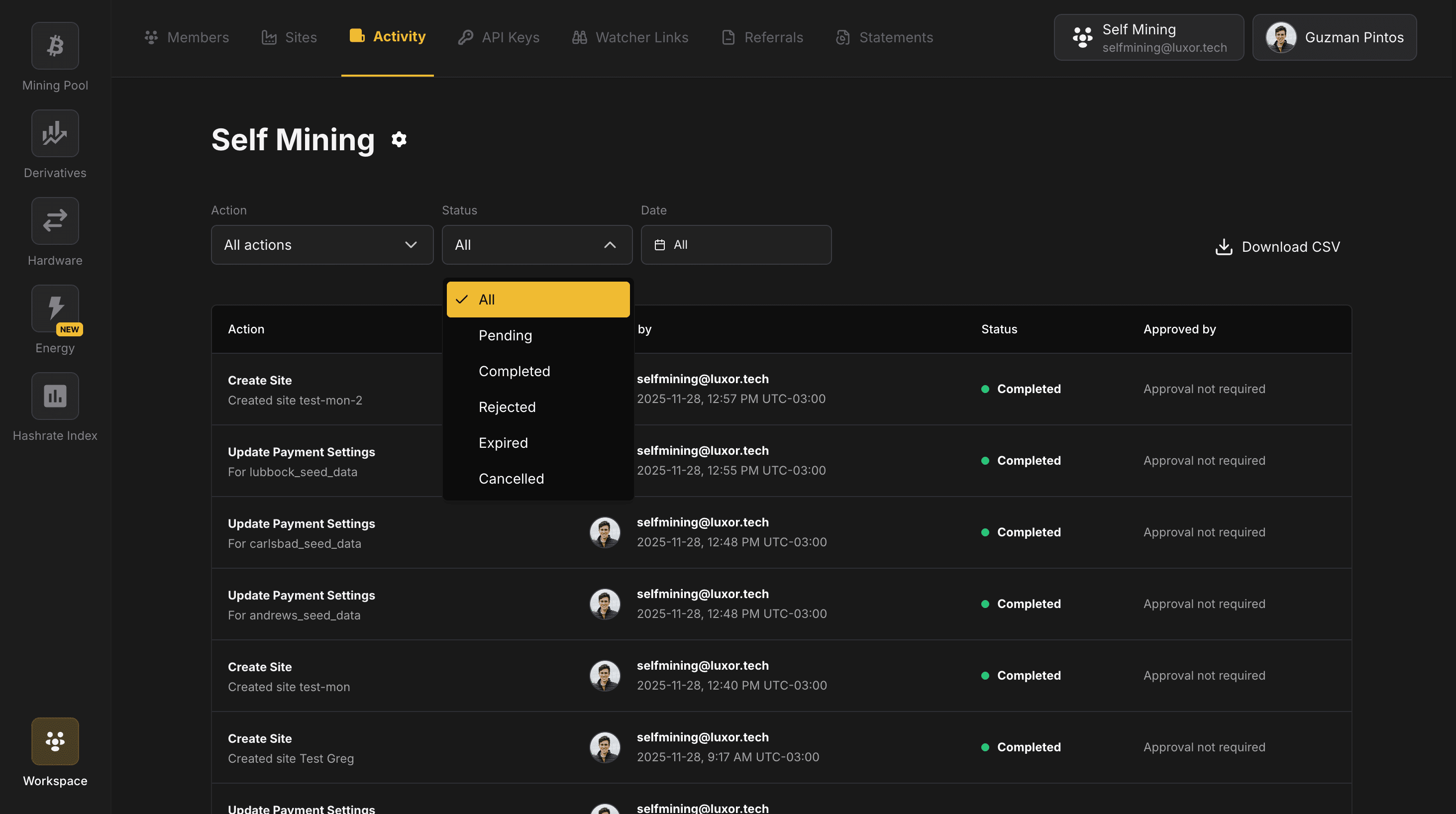
Activityunder theWorkspacesection. - Each action in the Activity log provides the following information:
- Action: Describes the action performed.
- Initiated By: Displays the user who initiated the action, together with a timestamp for when it was initiated.
- Status: Shows the action status, with five possible options:
- Completed: The action was performed
- Cancelled: An approval request was triggered, but the initiator cancelled the request before it was accepted/rejected by someone else
- Expired: An approval request was triggered, but the request expired before someone accepted/rejected it
- Rejected: An approval request was triggered, but someone rejected it
- Pending: The action has not terminated. This is because an approval request was triggered and someone needs to approve/reject it, or because it is a Workspace invite that a user is pending to accept.
- Approved By: Displays the name of the approver if applicable, together with the timestamp for when it was approved.
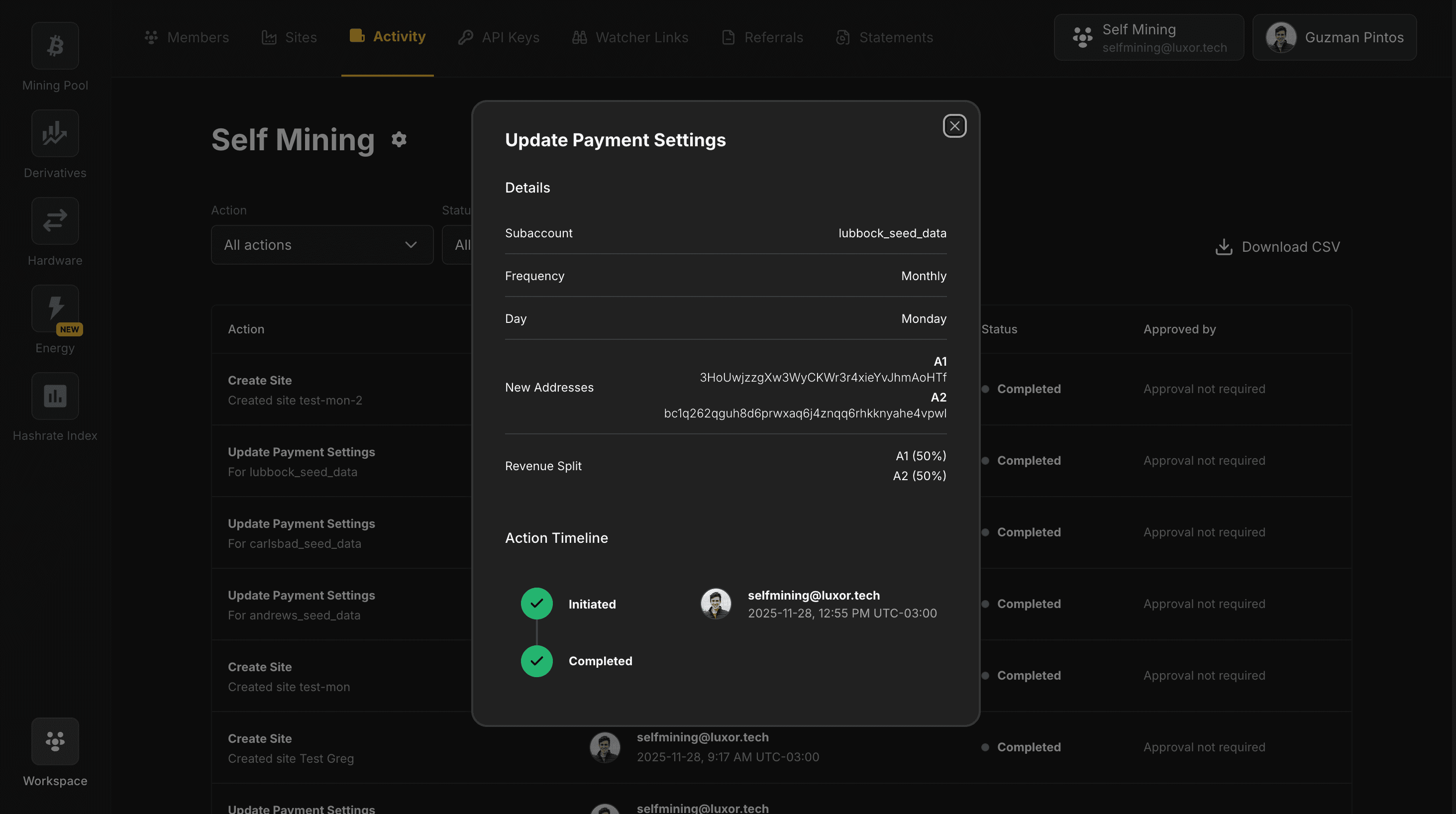
- You can click on each of these actions to open a modal that includes contextual information for the action.
- You can download a CSV file using the button located in the top right side of the page.
- You can filter the Activity log by Action, Status or Date, using the filter buttons located above the list of actions. These filters will also be applied to CSV downloads.
Approvals
What are Approvals?
- Certain critical actions require a two-party approvals flow for added security. The column
Approvalsin the table listing the permissions in the previous section, indicates which mutations are subject to Approvals. - By default, the approval system is disabled and can be enabled in Workspace Settings.
- For an approval request to be triggered, the following conditions need to be met:
- A critical action is attempted
- The approvals system is enabled
- Within the scope of the approval, there is at least one
Adminwho can approve/deny the request
- After a Workspace member initiates an action that triggers an approval request, all other Workspace members eligible to approve/deny it are notified via email.
- An approval request expires after 24 hours if no authorized party has approved it. If this occurs and you want the action to be approved, try to perform it again to trigger another approval request.
Scope of an Approval
The scope of an Approval depends on the action being performed. A couple of examples to illustrate this:
- A mutation attempted at the Workspace level (e.g. Creating a Site, Enable 2FA requirements, Disabling approvals) that triggers an approval request, can be approved only by another Workspace-level
Admin. - A Subaccount-level mutation (e.g. changing the payment settings), can be approved only by another
Adminof that subaccount, whether by havingAdminaccess over that subaccount directly, or by having Admin role for a superior level access, i.e. a Site that contains the subaccount, the entire Mining Pool product or the entire Workspace.
Sites
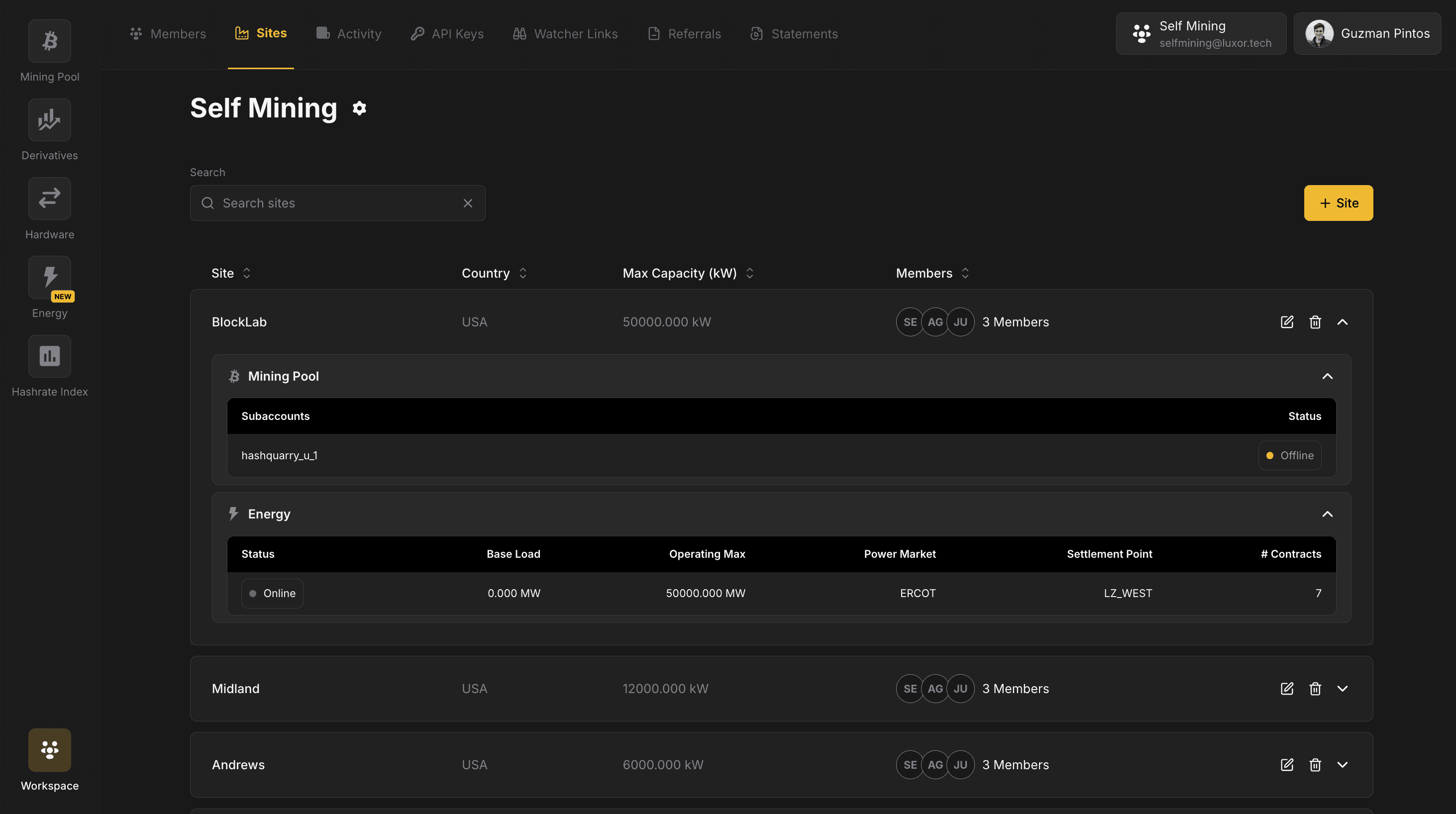
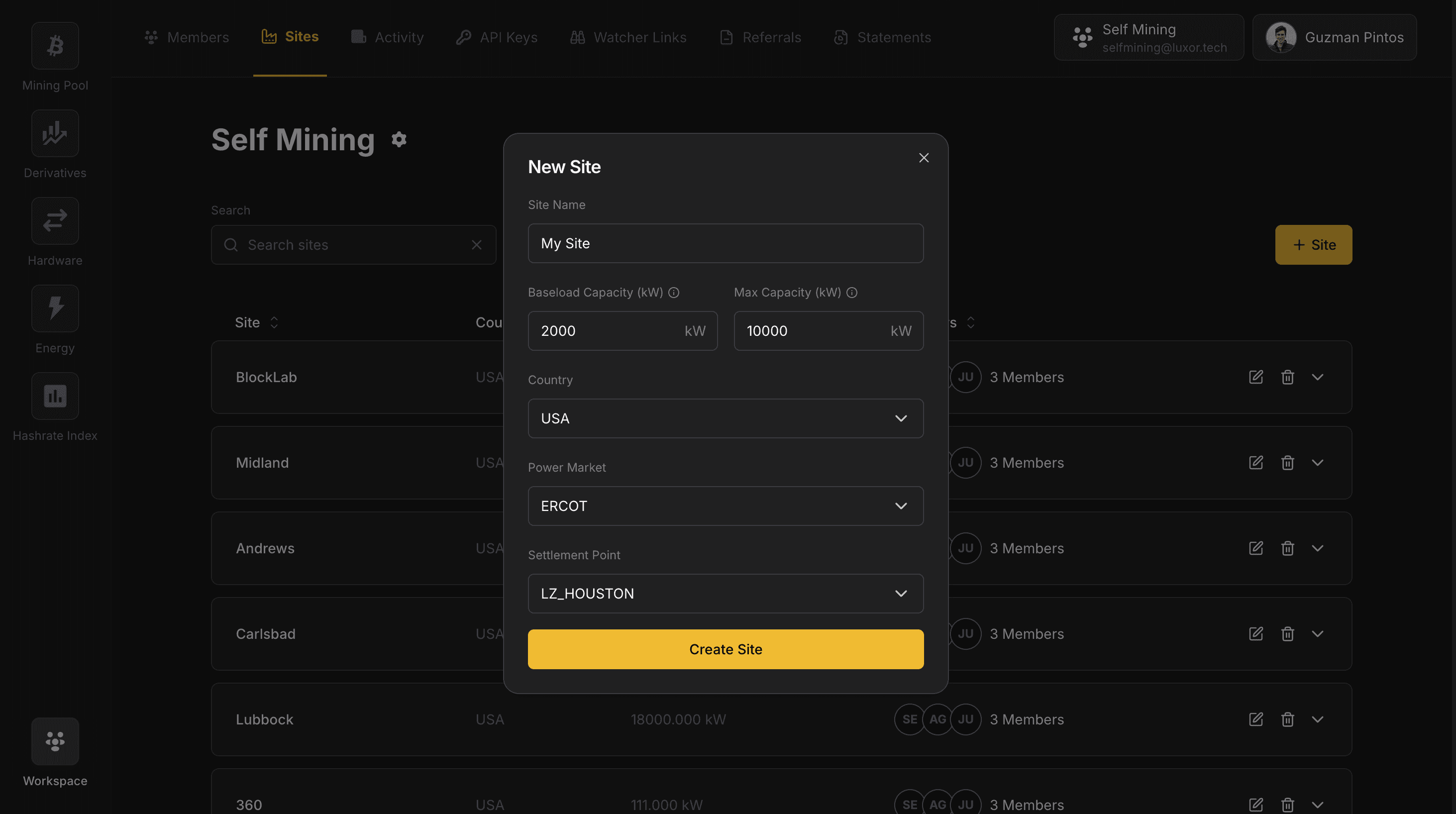
Sites are the way to model your physical locations in the Luxor Mining Ecosystem.
Currently the following products support Sites:
- Energy - Each Site has attached geographical metadata, which allows to pull real time energy prices.
- Mining Pool - Any subaccount can be linked to a Site. This allows to blend energy costs and revenue data points, to derive metrics like breakeven prices. Also, by linking multiple subaccounts to a Site, you can extend permissions in bulk for all subaccounts at once, by extending permissions directly to the Site.
You can see the list of Sites under your Workspace, as well as create new ones, from the Sites tab inside the Workspaces section.
API keys
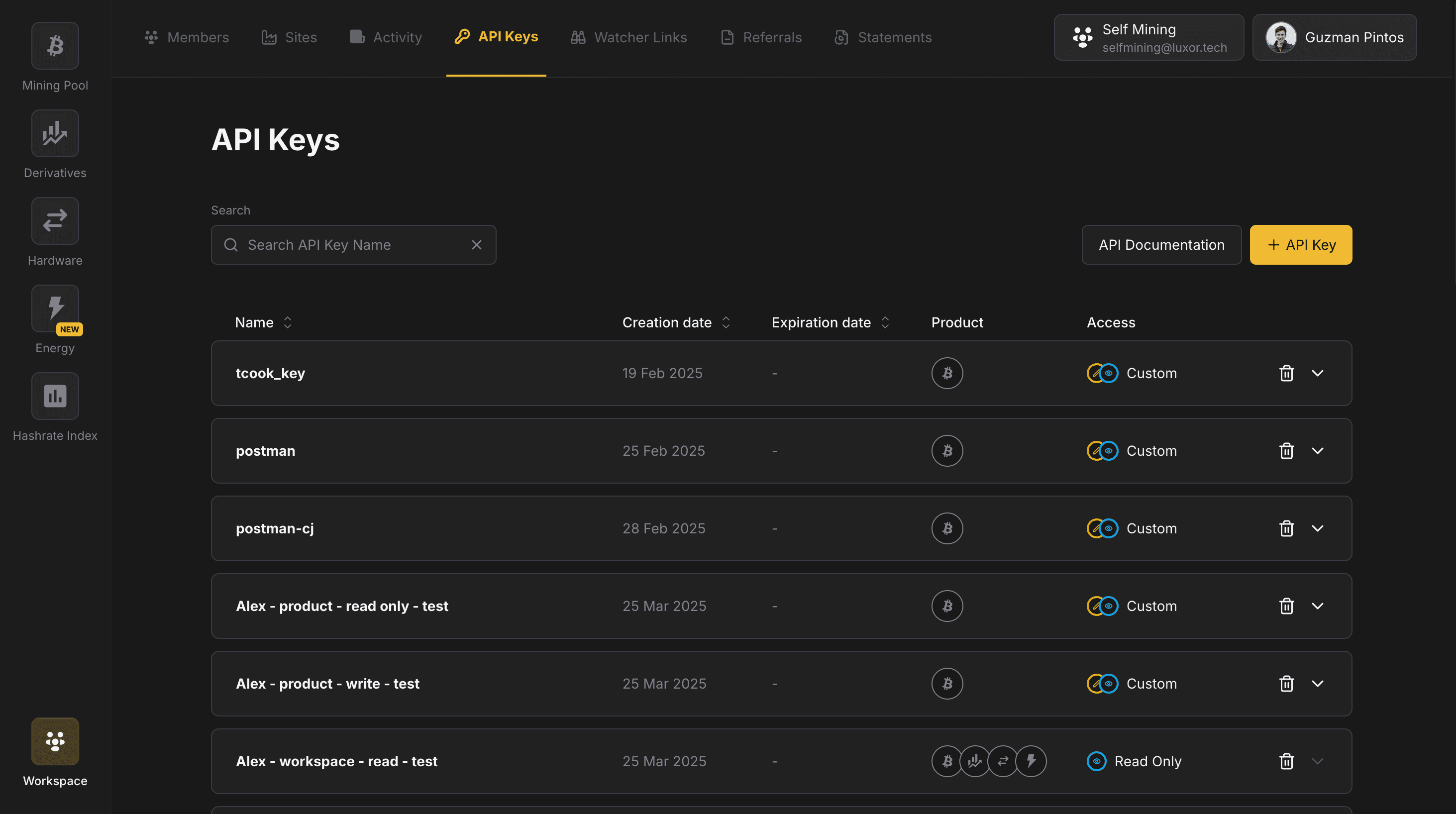
API keys to interact with Luxor via our REST API are also managed at the Workspace level. From this section, Workspace owners can:
- Visualize all existing API keys
- Delete existing keys
- Create a new key
Creating a new key
At the time of creating a key, a user will have to specify:
- A name for the key (unique within the workspace)
- An expiration date (optional)
- What they key can access to - same level of granularity & flexibiltiy as the permissions granted to users

Other Workspace features
The following features are tied to the Workspace, but only accessible to the Workspace owner or Workspace-level Admins:
- Watcher Links: Here users can find existing Watcher Links and create new ones. Watcher Links are view-only versions of the Mining page that you can share with third parties or technicians to monitor workers and hashrate. These can be created for one or multiple subaccounts.
- Referrals: Here users can find existing referral codes and create new ones.
- Statements: Here users can find a compilation of past Monthly Customer Statements, across different products.