

Dashboard
Real-time fleet monitoring and aggregate performance overview
Overview
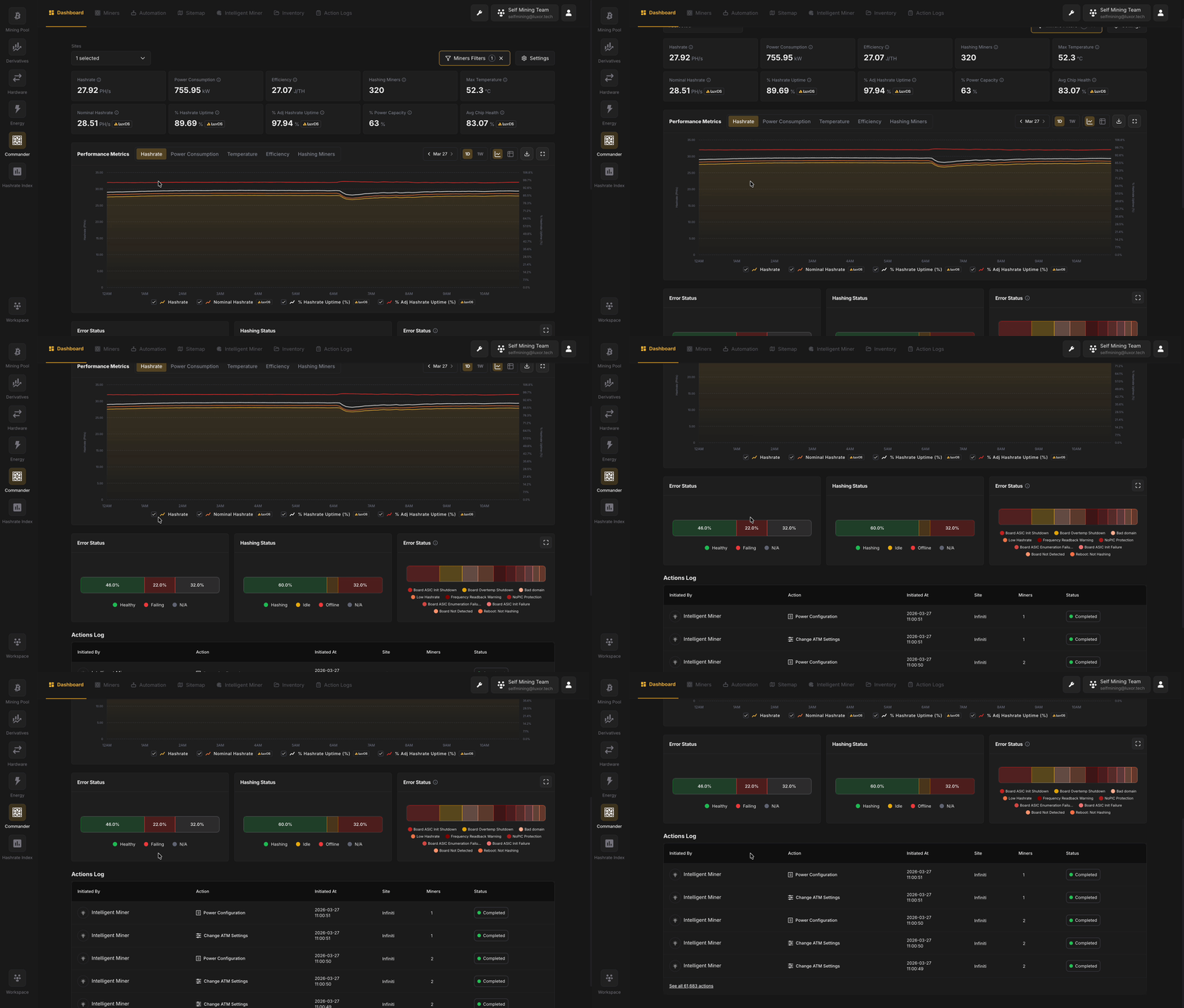
The Dashboard is the first thing you see when you open Commander. It answers the questions operators ask most often - how much of my fleet is hashing, how much power am I drawing, and is anything broken - without requiring you to click into individual miners. Use it as a triage screen: scan the KPIs for anomalies, check the health and error distributions to size up any issues, and review recent actions to confirm that automated or manual responses are executing as expected.
Fleet KPIs
At the top of the Dashboard, a set of key performance indicator (KPI) cards display aggregate metrics for your fleet. These update in near real-time based on the latest telemetry from your Agents.
| Metric | Description | Availability |
|---|---|---|
| Hashrate | Total observed hashrate across all hashing miners, measured in PH/s or TH/s | All miners |
| Power Consumption | Total power draw across all miners, measured in MW or kW | All miners |
| Efficiency | Fleet-wide energy efficiency, measured in J/TH (Joules per Terahash) | All miners |
| Hashing Miners | Count of miners currently in a hashing state | All miners |
| Max Temperature | Highest temperature reading reported by any miner in the fleet | All miners |
| Nominal Hashrate | Expected hashrate based on the configured mining profiles and power targets | LuxOS only |
| % Hashrate Uptime | Ratio of actual hashrate over nameplate hashrate | LuxOS only |
| % Adj Hashrate Uptime | Ratio of actual hashrate over nominal hashrate | LuxOS only |
| % Power Capacity | Current power usage as a percentage of total available power capacity for the Sites selected | All miners |
| Avg Chip Health | Average chip health score across all LuxOS miners | LuxOS only |
These KPI cards provide immediate insights into your operation's performance and can be expanded for historical trends and detailed breakdowns.
Performance Time Series Charts
Below the KPI cards, an interactive time-series chart allows you to visualize fleet performance over time. You can switch between the following metrics using the tab selector:
- Hashrate - Total mining output across your fleet
- Power Consumption - Aggregate power draw
- Temperature - Fleet-wide temperature trends
- Efficiency - Energy efficiency over time
- Hashing Miners - Count of actively hashing devices
The time-series view enables you to correlate operational changes with performance outcomes and identify patterns in your fleet's behavior.
Distribution Charts
Three distribution charts provide miner-level breakdowns of your fleet's operational state. Clicking any slice from any distribution redirects you to the Miners page, filtered for miners belonging to the selected category.
Error Status
The Error Status bar chart provides a breakdown of miner error state across three categories:
- Healthy (green) - Miners with no unresolved events of type Error
- Failing (red) - Miners reporting hardware errors or degraded performance
- N/A (grey) - Miners where error data is not available. Common causes include: the miner is offline or unreachable, the Agent hasn't completed its first scan of the device, or the miner's firmware does not report health telemetry in a format Commander can interpret.
This is a percentage-based, miner-level distribution chart. All slices add up to 100%, giving you an immediate view of how many miners are operating without issues versus those requiring attention.
Hashing Status
The Hashing Status bar chart categorizes miners by their current operational state:
- Hashing (green) - Actively mining
- Idle (yellow) - Powered on but not hashing
- Offline (red) - Offline miners
- N/A (grey) - Undetermined status. This typically means the Agent is offline or the miner is not reachable on the network.
This is a percentage-based, miner-level distribution chart. All slices add up to 100%. Use this view to quickly assess how much of your fleet is actively contributing to hashrate.
Error Status
The Error Status panel displays a summary of unresolved errors across the fleet. This is an error-level distribution chart, showing the types and frequency of issues affecting your operation. Use this to prioritize incident response by understanding which error categories are most prevalent.
Actions Log
At the bottom of the Dashboard, the Actions Log table displays the most recent remote commands executed on your fleet. The Actions Log shows:
- Command type and name
- Number of targeted miners
- Execution timestamp
- Overall success/failure status
Clicking an individual action redirects you to the Action Details page, where you can find results of the remote commands executed on a per-miner basis. For a full audit trail with advanced filtering and search capabilities, see the Bulk Actions & Actions Log page.
Using the Dashboard Effectively
The Dashboard layout is designed for quick decision-making. Start by scanning the KPI cards for any concerning values, check the Error Status and Hashing Status distributions to identify underperforming cohorts, and review the Actions Log to understand recent operational activity. For deeper investigation, use the distribution charts' filtering to drill into specific miner groups, or navigate to the Miners View for tabular analysis.